

Converting a scanned PDF with tables to Word
Published
A scanned page is a picture of a document. Before anything can be edited, the text has to be read from the image, and then the layout, including any table, has to be rebuilt around it. Here is a real scanned form converted with OrigaDoc, unedited.
Why scans are different
A PDF made from Word or a browser contains the actual text. A scan contains only pixels: you can't select a word, and copying gives you nothing. Converting it means two jobs. Text recognition works out each character from the image, and then layout reconstruction decides which characters form paragraphs, headings and table cells.
Both get harder with real-world scans: a page fed in slightly crooked, speckles from a photocopier, a low scanning resolution, or letters softened by blur. Tables add a further step, because every value has to land in the right row and column.
The example
We made a one-page equipment inspection form (the site, people and findings are fictional) and turned it into a typical office scan: an image-only PDF at about 150 dots per inch, tilted by almost one degree, with photocopier speckle and slight blur. There is no text in the file at all. We converted it with the standard settings.
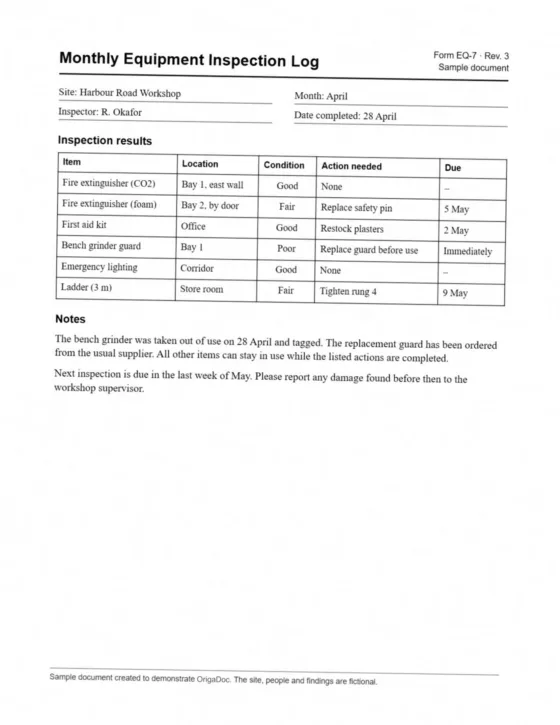
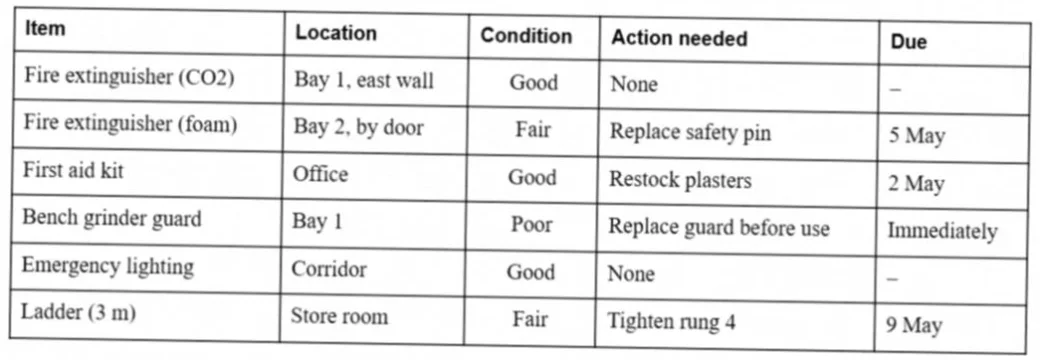
The inspection table, close up
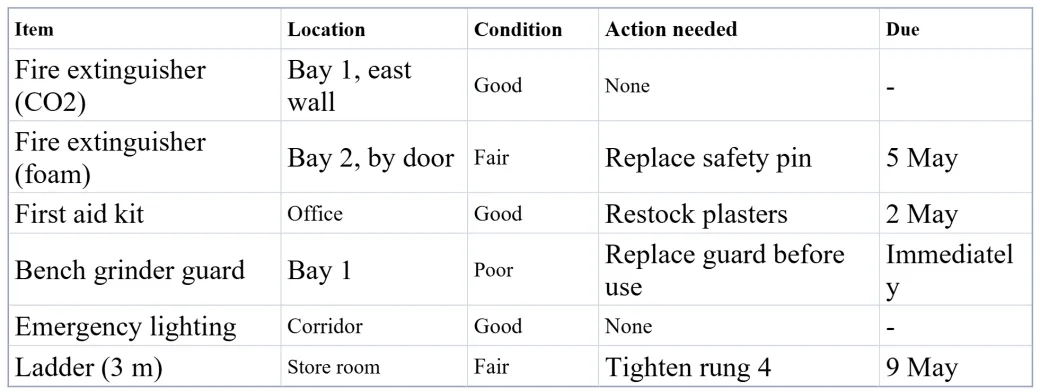
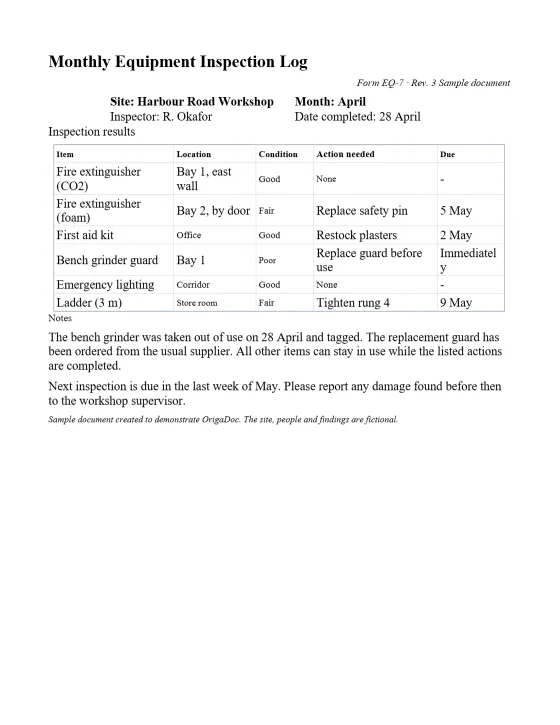
What came through as editable Word
- Every word and number on the page was recognised correctly: all 163 words, including the 30 values in the table, dates such as "5 May" and names such as "Fire extinguisher (CO2)". The only difference from the original is two dashes, below.
- The table is a real Word table with 5 columns and 7 rows, every value in the right cell, and the header row set to repeat on a new page.
- The tilt is gone: the result is straight, ordinary text.
- The notes are normal paragraphs that reflow as you edit.
What needed fixing by hand
- The four form fields at the top (site, month, inspector and date) were written on underlined lines in the original. They came through as a small two-by-two table without borders, with its top row in bold. Convert it to text, or remove the bold, if you want it closer to the original.
- "Inspection results" and "Notes" came through as plain paragraphs, not headings. Apply a heading style to them.
- The table's text came out in two sizes: cells such as "Fire extinguisher (CO2)" at 13.5 pt, shorter ones such as "Good", "None" and "Office" at 10 to 10.5 pt. The larger cells wrap, so "Immediately" breaks over two lines. Select the table and set one size.
- The dashes in the empty "Due" cells were read as hyphens ("-" instead of "–").
- All text is in Times New Roman, where the original's title, headings and table header use a sans-serif font, and the centred "Condition" column is left-aligned.
Tips for better results from scans
- Scan at 300 dpi if you can. This sample shows that 150 dpi can work, but a higher resolution gives text recognition more to work with, especially for small print.
- Keep the page flat and straight, and avoid shadows from a phone camera. The slight tilt in this sample was handled, but there is no reason to make recognition work harder than it needs to.
- Check numbers, dates and names against the original before you rely on them. Recognition can confuse similar characters, such as 0 and O or a dash and a hyphen.
- Keep "Flag scanning errors" on (it's on by default). The preview then highlights words that may be misread: ones the recognition was unsure of, and a number or code read differently elsewhere in the document, with a suggestion when there is one. Your text is never changed, so you decide; turn on "Mark flagged words in the Word file" to see them highlighted in Word too.
Limitations
This was a clean typed form. Handwriting, very low-resolution or heavily damaged scans, and complex multi-column layouts may need manual review. Text recognition reads printed text in many languages; right-to-left languages such as Arabic and Hebrew aren't laid out right to left in Word yet. If your table has merged cells or grouped headers, see converting a PDF with complex tables.
Check it yourself: sample scan (PDF, 141 KB) · Word result (DOCX, 4 KB) The result is exactly what OrigaDoc produced with its standard settings.