

Converting a two-column PDF to Word
Published
Newsletters, reports and articles often set text in two columns. The risk when converting them is that the columns get read straight across, so the lines of one column end up interleaved with the other. Here is a two-column newsletter converted with OrigaDoc, unedited.
Why columns get mixed up
In a PDF, the first line of the left column and the first line of the right column sit at the same height on the page. Nothing in the file says they belong to different stories. A converter that reads the page line by line, left to right, produces sentences that jump between the two columns every few words.
To get it right, the converter has to recognise the two columns as separate regions, read each from top to bottom, and keep headings with the text that follows them.
The example
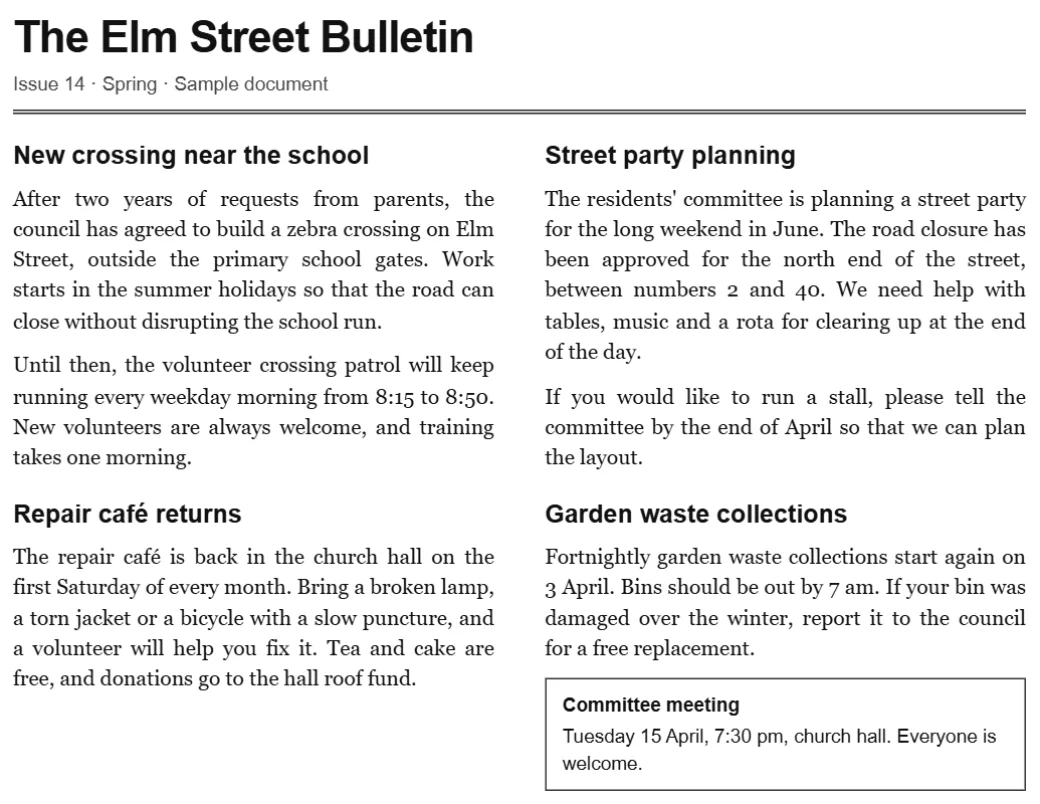
We made a one-page street newsletter (the street, events and organisations are fictional) with a title across the top, four short articles in two columns, and a boxed notice at the bottom of the right column. We converted it with the standard settings.
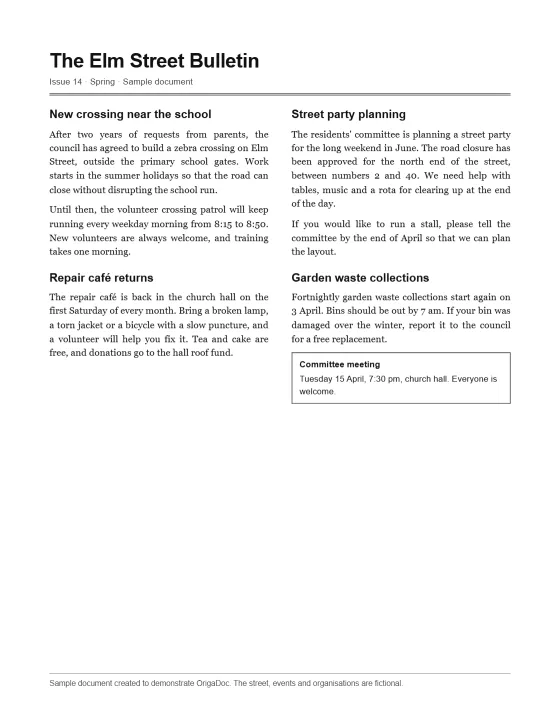
The columns, close up
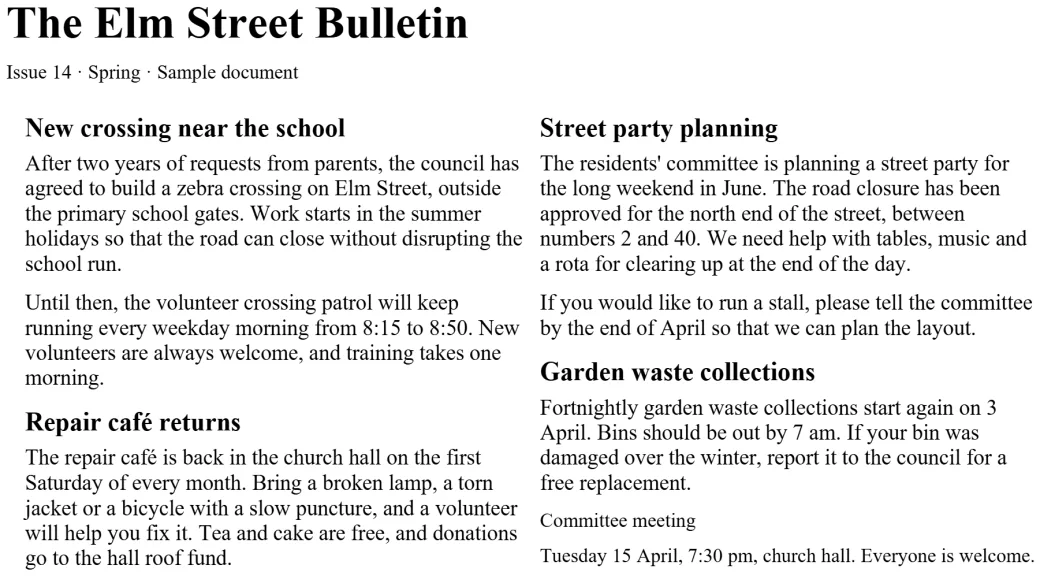
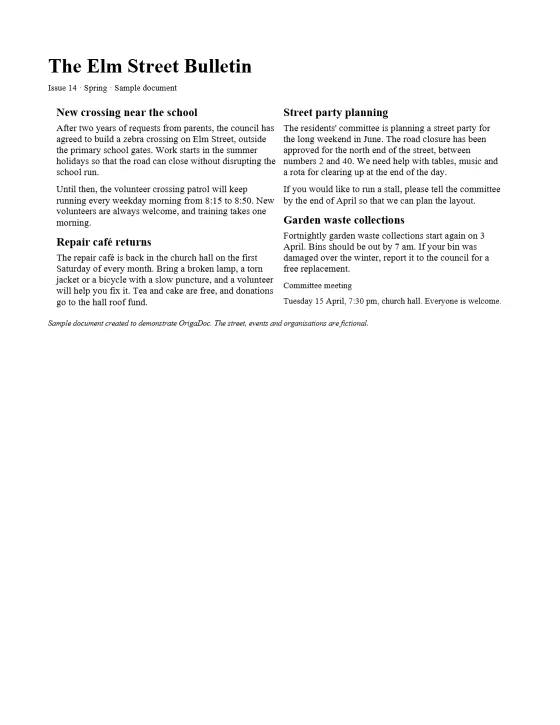
What came through as editable Word
- The reading order is right. All 275 words are in the same order as in the PDF, and every one matches it: the title, then the left column from top to bottom, then the right column. No lines are interleaved.
- The newsletter title and issue line run across the full width above the columns, as in the PDF.
- The two columns stay side by side. Word holds them in a two-column table with no borders, so the page looks like the original.
- The title is a Word Title paragraph and all four article headings are Heading 2 paragraphs, so they appear in Word's navigation pane. The article text is ordinary, editable paragraphs.
- No text boxes: everything can be selected, edited and restyled.
What needed fixing by hand
- The boxed "Committee meeting" notice lost its border and became two plain paragraphs.
- The justified text became left-aligned, all in Times New Roman, where the PDF sets its headings in a sans-serif font.
- Because the columns are table cells, text doesn't flow from the left column into the right one as you type.
Tips for two-column documents
- Want text that flows between columns? Select the table, choose Convert to Text (Table Layout tab, separate text with paragraph marks), then apply Layout > Columns > Two. The reading order is already right, so the articles stay in sequence.
- Need one column of text? Use Convert to Text as above and skip the columns step.
- Check full-width items such as titles, pictures and footnotes that span both columns. Here the title stayed above the columns; on a busier page, check where each one ended up.
- Use the navigation pane (View > Navigation Pane) to jump between articles via their headings.
Limitations
This was a clean two-column page with a single title above it. Layouts that mix one, two and three columns on the same page, or wrap text around pictures, are more complex and may need manual review, so check where each block ended up. Columns of figures in a table are a different case: see converting a PDF with complex tables.
Check it yourself: sample PDF (72 KB) · Word result (DOCX, 4 KB) The result is exactly what OrigaDoc produced with its standard settings.